Products that have an expiration date are classified as Lot type products in PULPO WMS (see the definitions for None, Serial and Lot type products in PULPO WMS). By default, PULPO WMS ensures that products with the earliest expiration date always leave the warehouse first. This article will explain how to receive Lot type products from a purchase order using the PULPO WMS Mobile App.
Receiving lot-type products
For receiving Lot type products in the warehouse, the product must be created or synchronized as explained in the Create/Edit Products article. Moreover, a purchase order with a specific delivery date must exist (see Manage incoming goods article).
The process for receiving Lot type products is the same as the one for receiving None type products described in the receiving none type products with purchase order article. All steps will be the same except for step 6 of the procedure, where a lot number must be selected or assigned to each product.
When the GS1 barcode scanning setting is enabled, users can scan product data such as barcodes, lot numbers, expiry dates and quantity using GS1 barcodes.
We will explain this here as follows:
Perform the same steps 1 to 5 as explained in the receiving none type products with purchase order article.
When swiping towards the right for receiving the listed products of the purchased order, a screen for assigning the lot numbers appears:
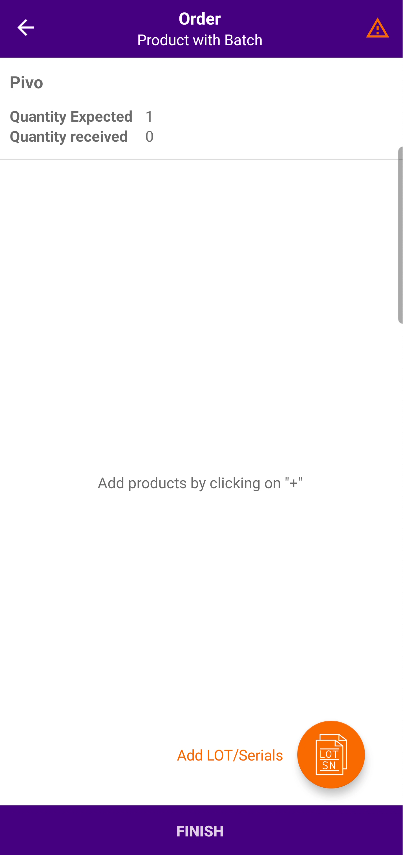
3. Click on the "Add LOT/Serials" button located at the lower right side of the screen to create/assign a lot/batch number to the product. Unlike the other types of products of PULPO WMS, a Batch Number and Expiration Date must be scanned or assigned to Lot type products when receiving them at the warehouse.
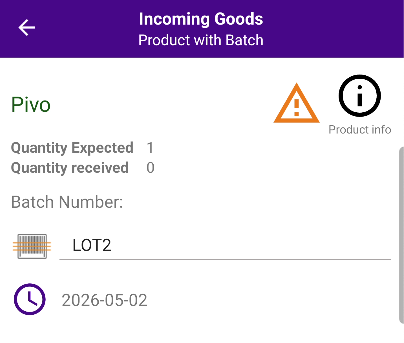
As in receiving incoming goods with None type products, these can be accepted or rejected according to their delivery conditions. Register the accepted quantity of products as well as the rejected ones in case of any.
❗️ NOTE: Accepted products are to be taken inside the warehouse and will be active in warehousing tasks. Rejected products must be manually taken to positions of type "return" and will not be made available for sale.
The employee must scan the barcode of the current receiving position to register the product at that receiving position.
PULPO WMS allows adding any notes or pictures, for example, to add information according to the actual state of the products when being physically inspected at the receiving positions.
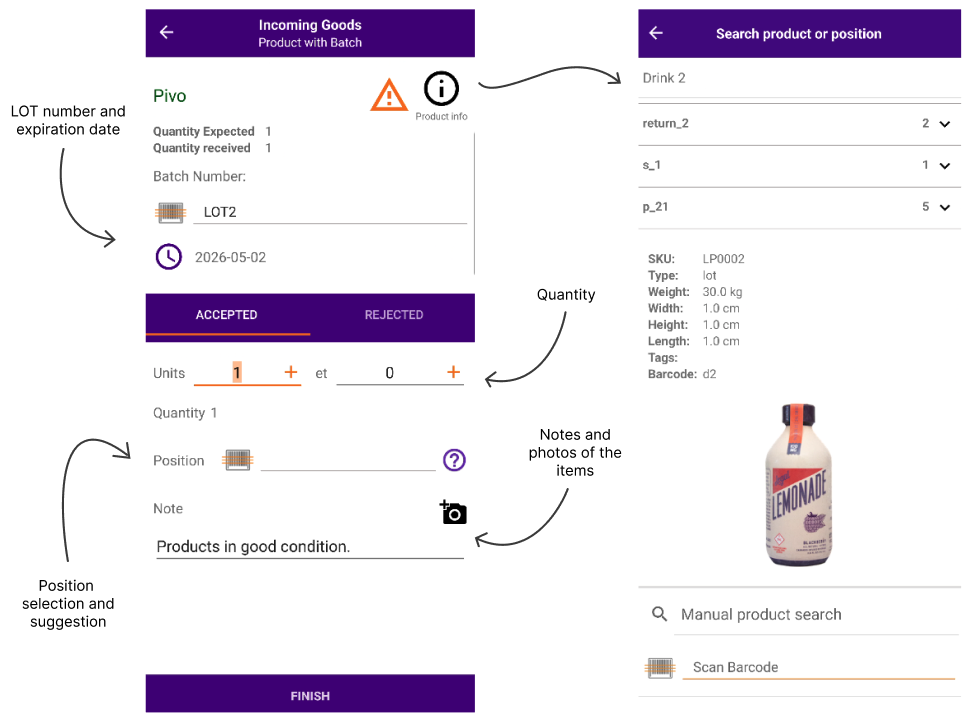
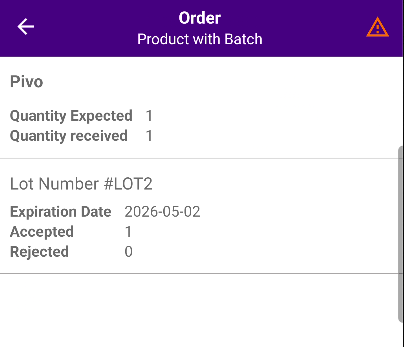
4. When finishing scanning or assigning lot/batch numbers to the accepted/rejected products, press the FINISH button to return to the assigning lot numbers screen mentioned in 2. Since different batches may be received in one shipment, you will return to this screen after adding every batch. Notice that listed products have now an expiration date defined and the accepted/rejected quantity is displayed.
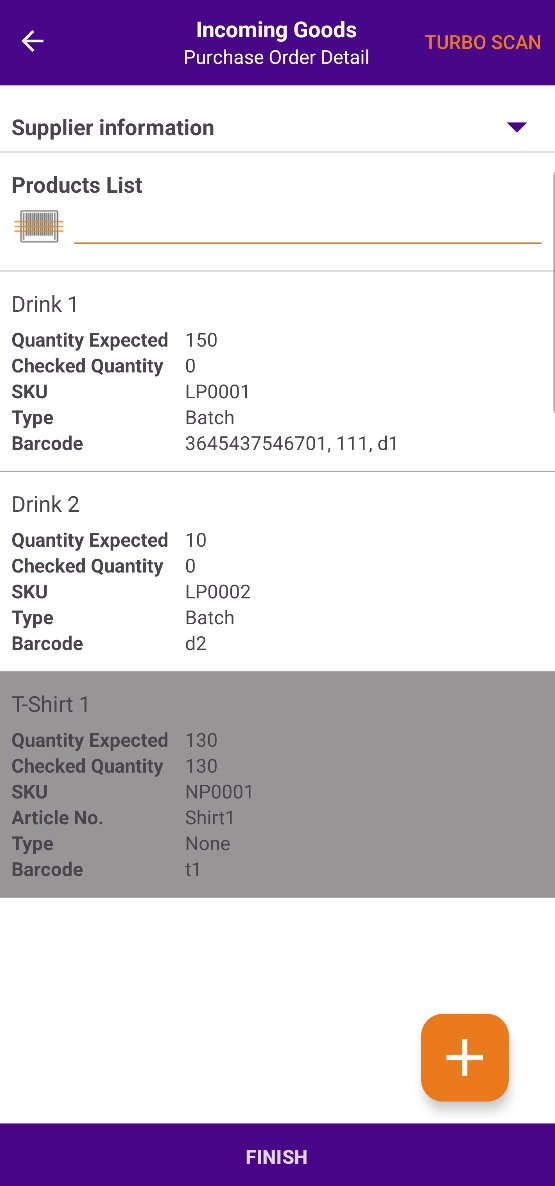
5. Click on the FINISH button when all products from the list have been inspected and have a lot number and expiration date defined. This will return to the purchase order screen. As mentioned in the receiving none type products with purchase order article, products that have been completely inspected will be dark grey colored and blocked.
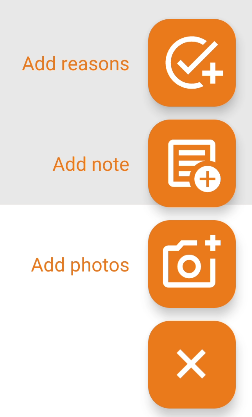
Tapping the orange "+" button allows you to add notes, reason codes and photos on the sequence level.
6. When all products listed in the purchase order have successfully been inspected (all products are grey colored and blocked), the task can be finished by clicking the FINISH button at the lower part of the screen. This will return to the list of purchased orders mentioned in step 4 of the receiving none type products with purchase order article.
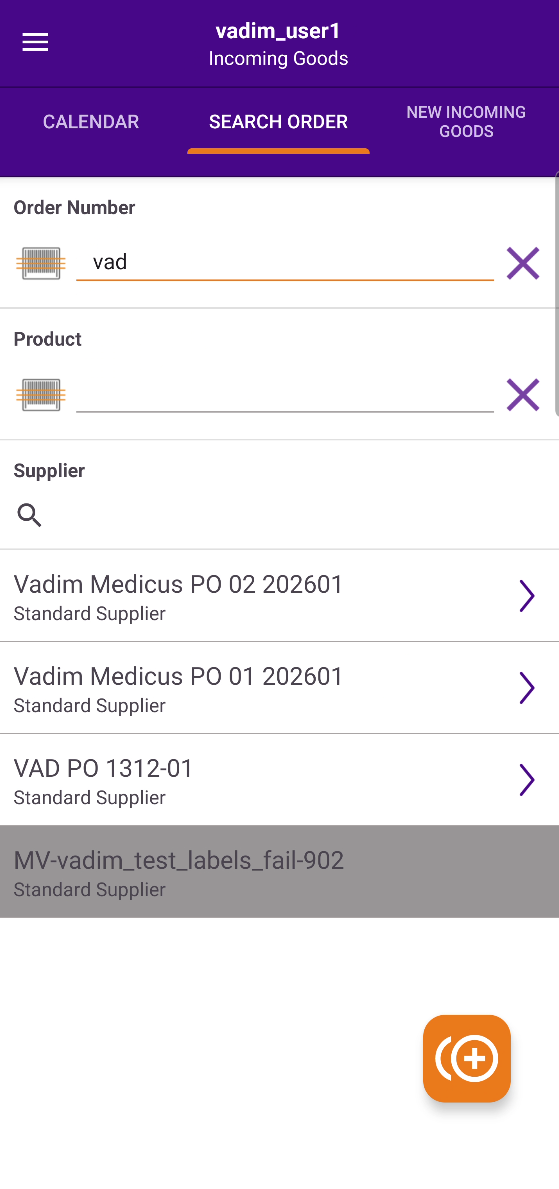
7. When all purchase orders from the list have been processed, the incoming good task can be finished for that specific date by pressing the back arrow button located at the upper left side of the screen.
💡 PULPO TIP: Notice that successfully finished purchase orders can not be swiped to the right side of the screen and will be grayed out.

The products can now be stored in a corresponding position optimally assigned by PULPO WMS. The system will automatically create the movement task.
If the setting Do not create a storage movement task after an incoming good was booked is enabled, no movement task is created, and the products are to be moved with a manual movement.
Overbooking a Purchase Order
In a common case of overdeliveries, PULPO WMS allows receiving the products exceeding the purchase order quantity and associating them with a Purchase Order.
To associate the over-delivered products with a purchase order, follow the first steps of the Finding a Purchase Order section:
Open incoming goods in the mobile app
Open the " Search Order" tab
Click the "Overbook" button
Search for the PO by its number, the included product or the supplier
Swipe the Purchase Order to the right, receive the products as usual and save the data.
Incoming goods sequences will be created and associated with the selected purchase order. Such overbooking receptions can be searched by type in the PULPO WMS Web App
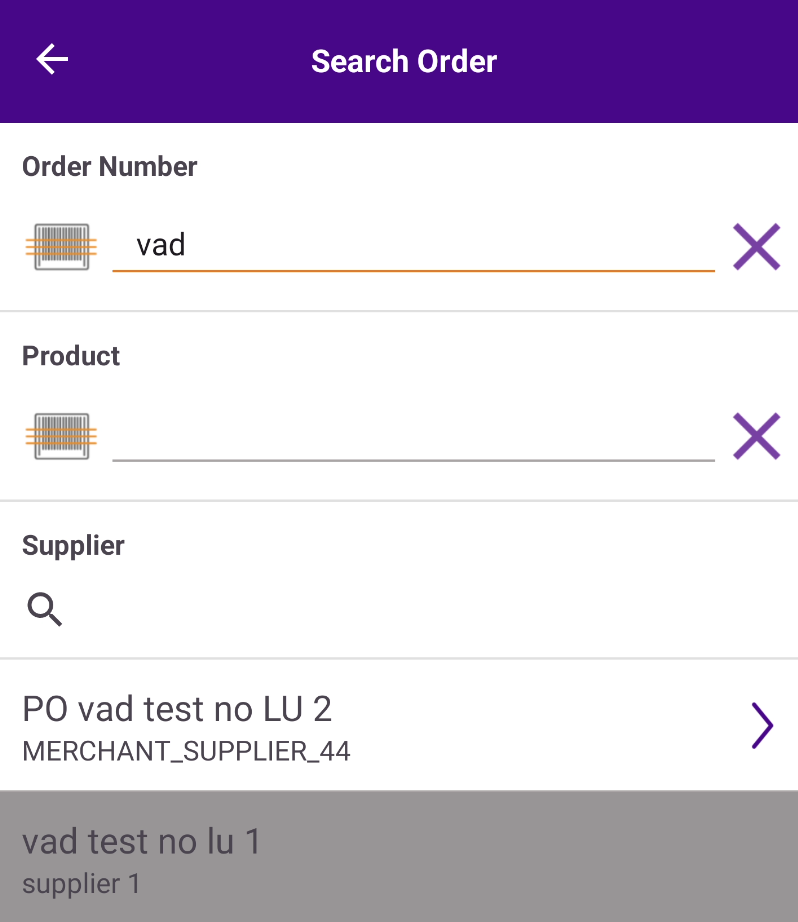
Overbooking functionality allows you to receive any product, regardless of the products included in the initial Purchase Order.
Negative Available Quantity Notification
If the available stock for a product is negative, the system will display a warning to help you take the necessary action and place the product in the position that is immediately available to your pickers.
Negative available stock, in very simple terms, means that you have more orders for a particular product than you have in stock.
If the available stock for a product is negative, an orange warning icon will appear in the product reception screens. This icon acts as a prompt to notify you about the stock discrepancy, and clicking on it will display more information.
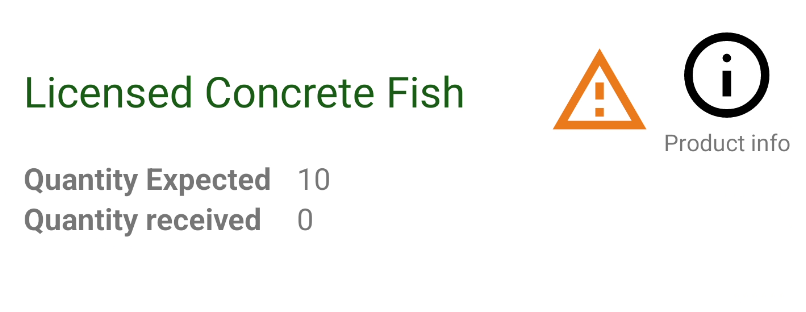
Clicking the warning icon will open an overlay dialogue with important information about the available stock.
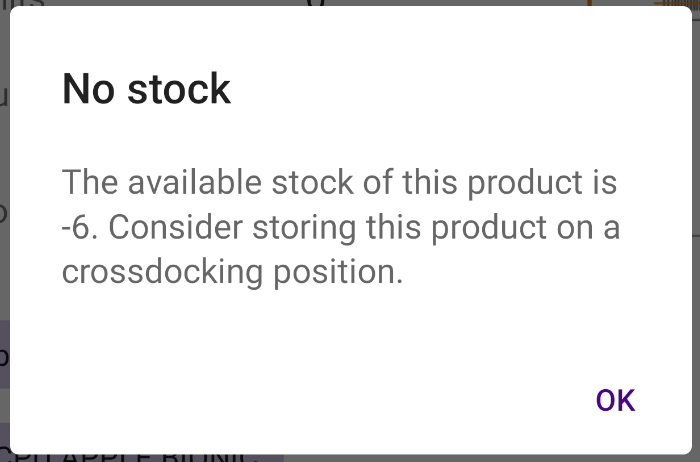
This feature ensures that you are alerted to potential stock issues and can take the necessary action—like storing the product in a crossdocking position—to keep your warehouse operations running smoothly.
If a product is sent to inactive it can not be received, and will be treated as if it is unknown to PULPO WMS.